About mylinuxbsdOS
mylinuxbsdOS is a Linux distribution from myLinuxBSD in Cyberjaya, Malaysia. It is built on Debian 13 (“trixie”) through LMDE 7, and comes in two editions that you pick during installation. Disk encryption and Secure Boot are supported out of the box.
| Base | Debian 13 “trixie”, via LMDE 7 |
|---|---|
| Kernel | Linux 6.12 (Debian’s stable kernel) |
| Architecture | x86-64 (64-bit PCs) |
| Init system | systemd |
| Package manager | apt / dpkg (.deb packages) |
| Desktop | Cinnamon (Full edition); none in Minimal |
| Installer | Calamares, with a Full / Minimal choice and optional LUKS2 encryption |
| Boot | UEFI (Secure Boot supported) and legacy BIOS (live session) |
| Account | You choose a username and password during install, plus a separate administrator (root) password. The live session itself signs in as mylinuxbsd / mylinuxbsd. |
System requirements
- A 64-bit (x86-64) PC that can boot from USB, with UEFI (Secure Boot on or off) or legacy BIOS firmware.
- 4 GB of RAM or more is recommended for the live session and the Full edition.
- At least 15 GB of free disk space. The installer checks this for both editions. Full uses about 13 GB after installing, Minimal about 3 GB.
- A USB stick of 8 GB or more for the installation medium.
- An internet connection is not required to install, but is needed for updates.
Download & verify
Get the ISO from the download page. You can enter an email address to receive a link that stays valid for a limited time, or use the direct links (no email), for example https://www.mylinuxbsd.com/download/mylinuxbsdOS-latest.iso. Older versions are kept in the archive on the same page, and https://www.mylinuxbsd.com/download/SHA256SUMS lists the checksum of every version.
Check that the file arrived intact by comparing its SHA-256 checksum with the value shown on the download page:
sha256sum mylinuxbsdOS-1.0.iso
# or check against the published list:
wget https://www.mylinuxbsd.com/download/SHA256SUMS
sha256sum -c --ignore-missing SHA256SUMS
On Windows, run certutil -hashfile mylinuxbsdOS-1.0.iso SHA256 in a terminal. On macOS, run shasum -a 256 mylinuxbsdOS-1.0.iso.
Create a USB stick
The ISO is a hybrid image: write it directly to the stick. Everything on the stick is erased.
Linux or macOS (dd)
Find the device name first (for example with lsblk), then write to the whole device, not a partition:
sudo dd if=mylinuxbsdOS-1.0.iso of=/dev/sdX bs=4M status=progress conv=fsync/dev/sdX with your USB stick. Writing to the wrong device destroys its data.Windows, macOS or Linux (graphical)
Use a tool such as balenaEtcher: choose the ISO, choose the stick, click Flash.
Boot the live session
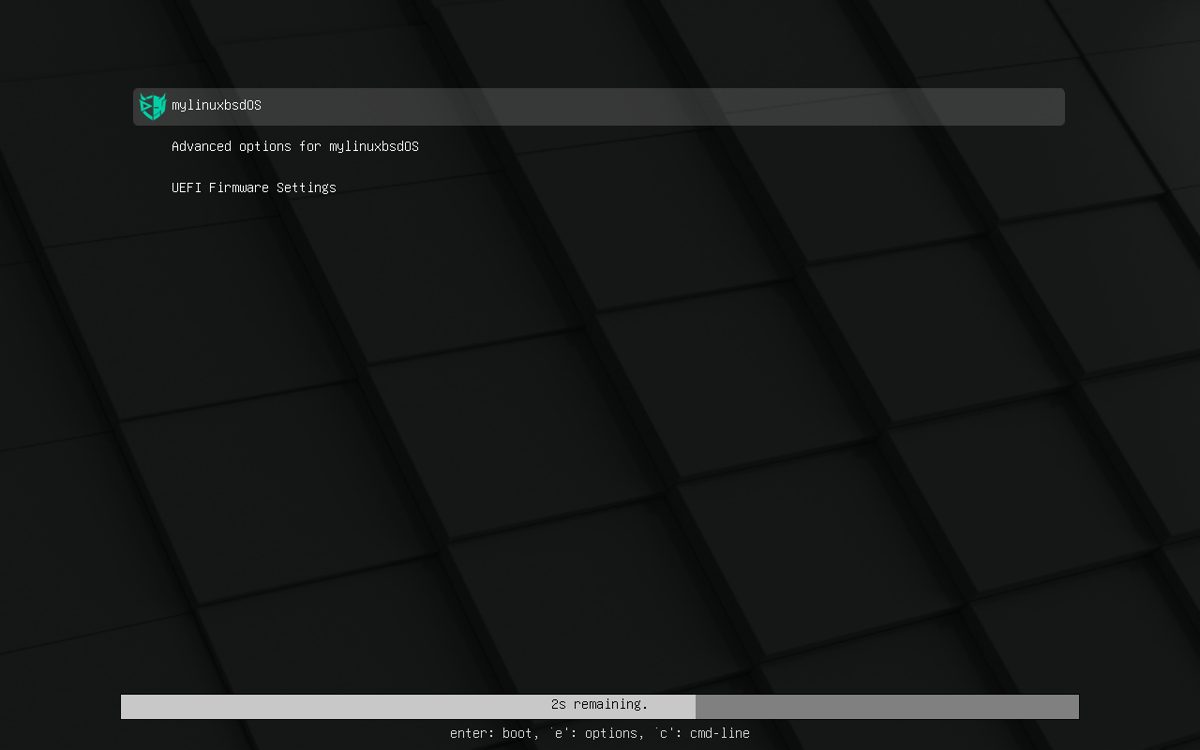
Boot the PC from the stick (usually by pressing F12, F9, Esc or F2 at power-on to open the boot menu). Secure Boot can stay enabled.
The boot menu offers:
- Live, persistent - the default. Changes can be kept on the stick if persistence has been prepared (see below).
- Live, RAM mode, no persistence - loads everything into memory; nothing is saved, and the stick can be removed afterwards.
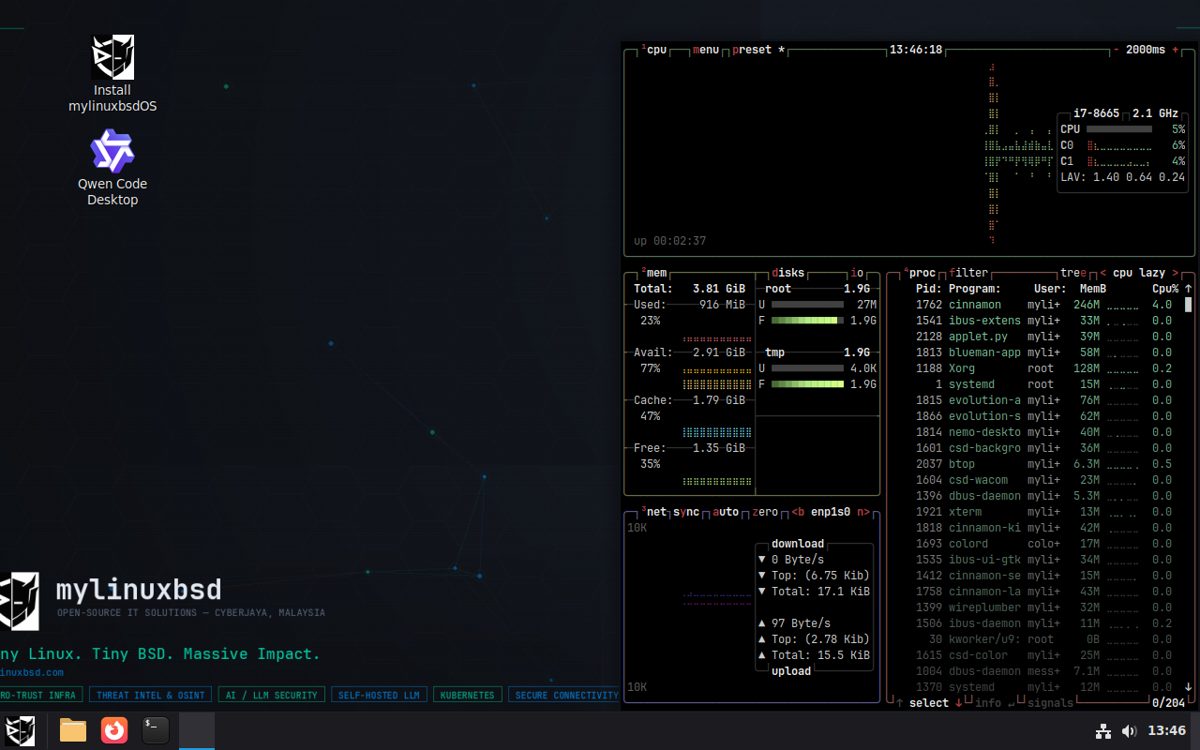
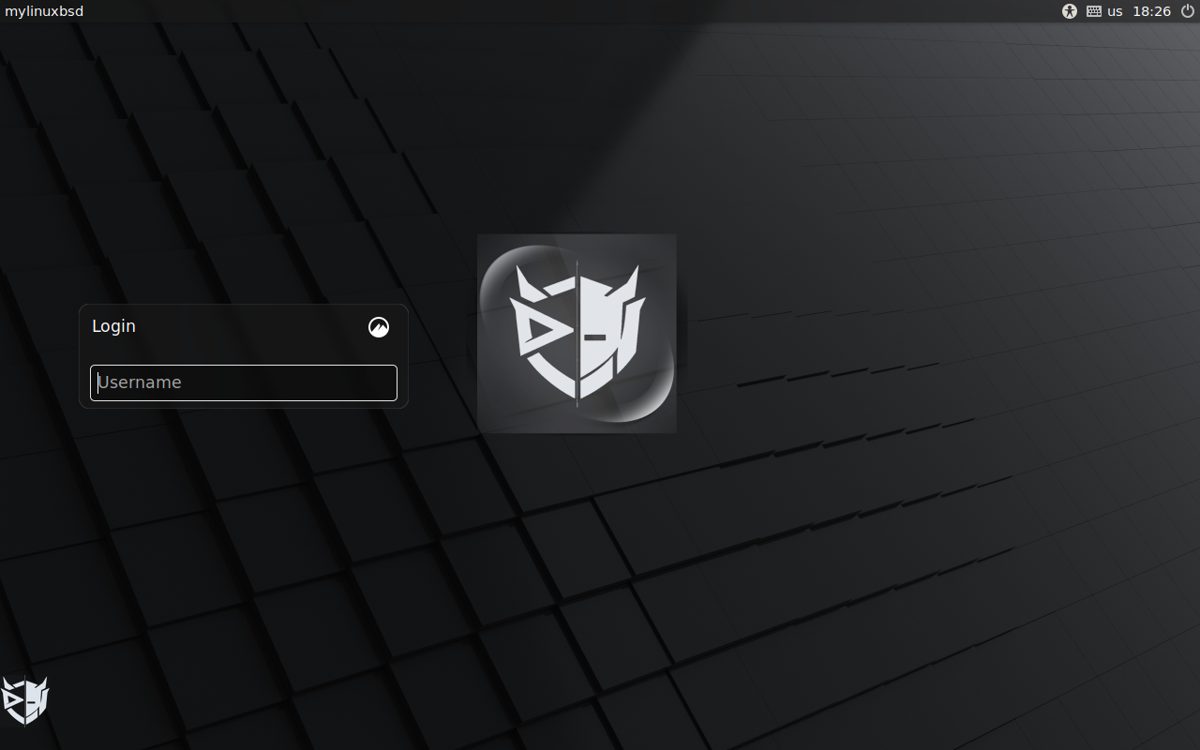
The live session shows a login screen (there is no automatic login). Sign in with mylinuxbsd / mylinuxbsd. The live session runs on the Full edition’s desktop; the installer is the Install mylinuxbsdOS icon on the desktop.
To keep files and settings across reboots of the live stick, run mylinuxbsd-setup-persistence in a terminal. It lets you choose a removable drive and asks before changing anything.
Install to disk
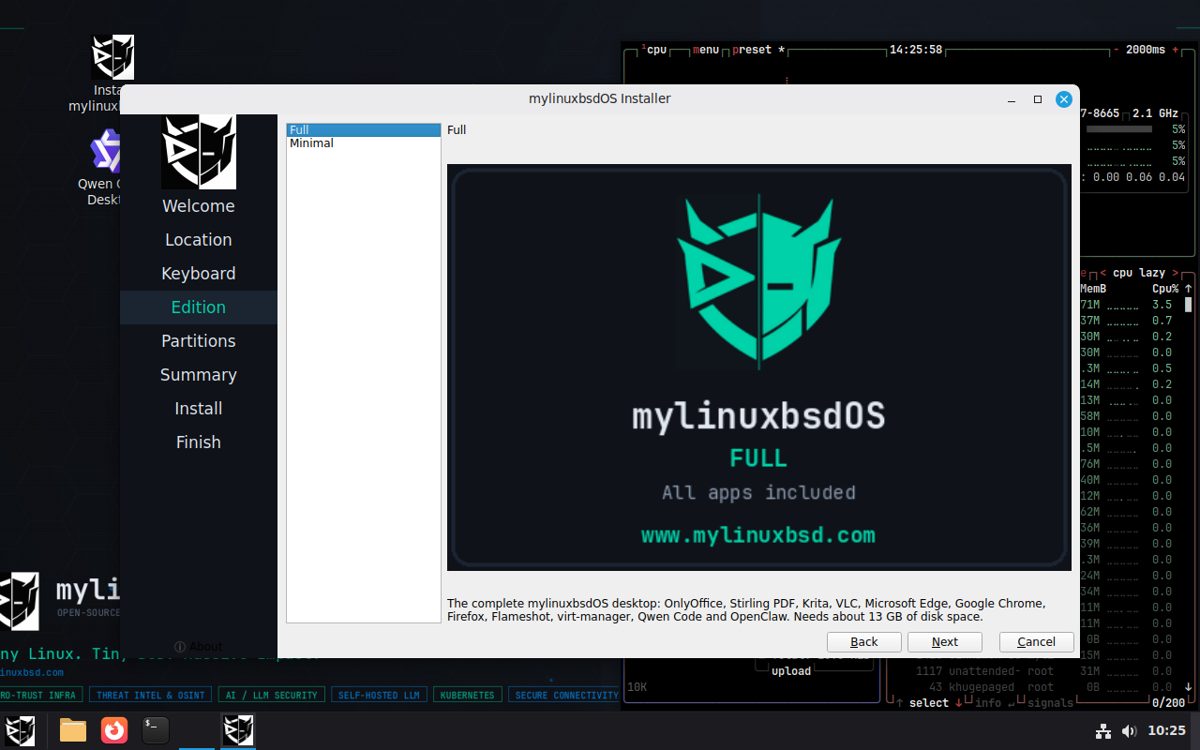
- Open Install mylinuxbsdOS from the desktop.
- Choose your language, location and keyboard layout.
- Edition: pick Full (the complete desktop with apps) or Minimal (core system, no desktop). Full is preselected.
- Users: enter your name, a login username, a computer name, and a password. Tick or leave unticked whether the administrator (root) account uses the same password, or set a different one.
- Partitions: choose Erase disk on the disk you want to use. Swap defaults to No swap. To encrypt the disk, tick Encrypt system and enter a passphrase (see below).
- Review the summary and click Install. When it finishes, restart and remove the USB stick.
The installer creates a 300 MiB EFI system partition, a 1 GiB /boot partition and the root partition using the rest of the disk. Erase disk removes everything on that disk. If you want to keep other operating systems, use manual partitioning and take a backup first.
mylinuxbsd account entirely - it is not carried over to the installed system, and there is no fixed default account or password once installed.Full-disk encryption
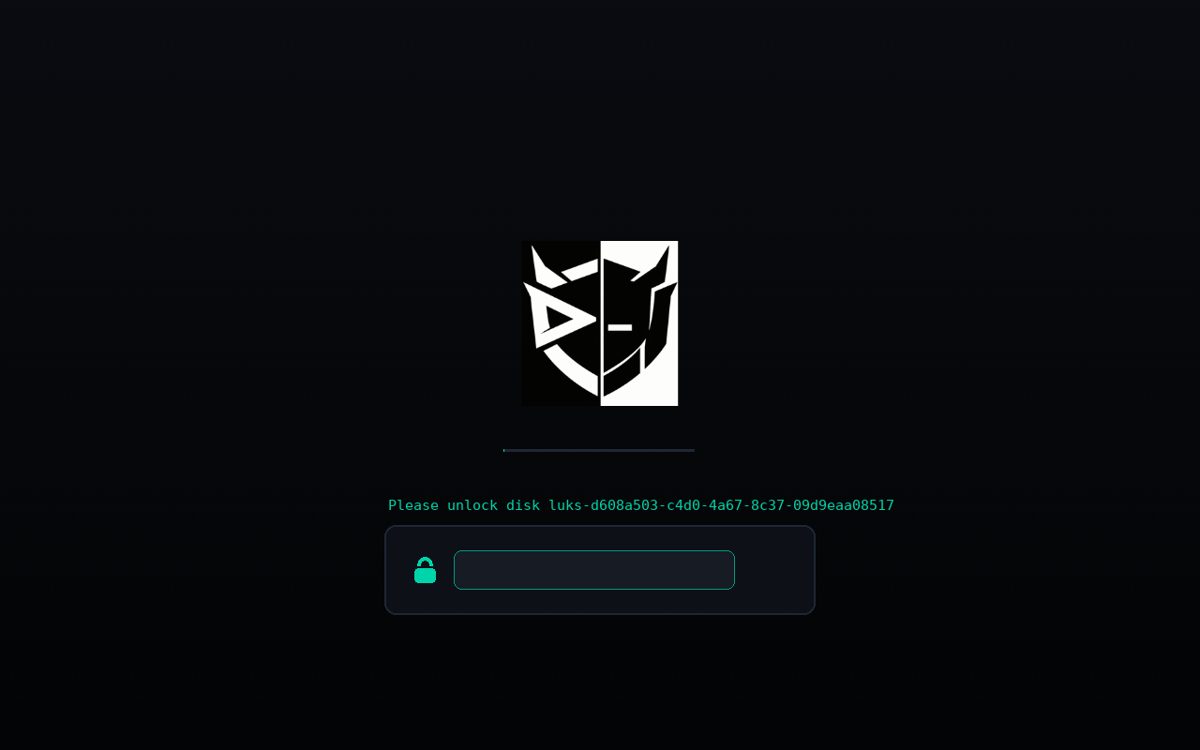
Ticking Encrypt system encrypts the root partition with LUKS2. The small /boot partition stays unencrypted so the bootloader can start. At every boot you enter the passphrase at a branded unlock screen, before login.
Encryption protects data on a powered-off or stolen computer. It does not protect a machine that is already running and unlocked.
First steps after installing
- Change the default password - open a terminal and run
passwd. - Update the system - see Updates.
- Connect to Wi-Fi - use the network icon in the panel (Full) or
nmtuiin a terminal (Minimal). Firmware for common Intel, Realtek, Atheros, Broadcom and MediaTek adapters is included. - Set the time zone if needed -
sudo timedatectl set-timezone Asia/Kuala_Lumpur(use your own zone). - Install more software -
sudo apt install <package>, or the Software Manager on the Full edition.
On an installed system, sudo asks for your password. Only the live session runs administrator commands without one.
Updates
Security updates from the Debian security archive are installed automatically (unattended-upgrades is enabled), and unused old kernels are removed. To update everything manually:
sudo apt update
sudo apt full-upgrade
Packages come from Debian 13 and from the LMDE (Linux Mint Debian Edition) repository. New mylinuxbsdOS versions are announced in the release history below and on the download page. To move to a new version, download the new ISO and install it; back up your files first.
The Minimal edition
Minimal is a core system with no desktop and no graphical applications. It starts at a text login and contains the Linux kernel, the Secure Boot chain, NetworkManager, disk-encryption support, an SSH server with fail2ban protecting it, and essential command-line tools (sudo, git, curl, rsync, net-tools, htop, btop, fastfetch, and more). It uses about 3 GB of disk after installation.
- Wi-Fi: run
nmtui. - SSH is on by default. Its port is reachable as soon as the network is up - if you don’t need remote access, run
sudo systemctl disable --now ssh. - Add anything else with
apt. Adding a full desktop later is possible but is not a configuration we test.
Full edition: privacy & security kit
Alongside the everyday apps, the Full edition ships a set of privacy and security tools, pre-configured and ready to use:
- KeePassXC - an offline password manager.
- OpenSnitch - an interactive application firewall. It asks you to allow or deny each new outbound connection the first time a program makes it; its rules and prompts are managed from the tray icon.
- Stubby (encrypted DNS, DNS-over-TLS) - installed, configured with Cloudflare and Quad9, and running on
127.0.0.1, but not used by default. Many networks (offices, some public Wi-Fi) block the port it needs (853), which would silently break all name resolution if it were the default. To use it, point your connection’s DNS at127.0.0.1once you’ve confirmed your network allows it. - Bubblewrap and Macchanger - sandboxing and MAC-address-randomisation command-line tools.
- BleachBit - a system and privacy cleaner.
- Tor Browser (via Tor Browser Launcher) and Mullvad Browser - both download and verify their actual browser software the first time you open them, so they need an internet connection then. Mullvad Browser’s desktop icon runs a small installer that verifies its download’s signature against the Tor Browser Developers’ key before installing anything.
FAQ & troubleshooting
The PC will not boot from the USB stick
Open the firmware boot menu and select the USB device, ideally the entry marked UEFI. If Secure Boot is on and the stick is rejected, check that the ISO was written completely (verify the checksum, then write it again). Some firmware only lists the stick after it is plugged into a different port.
Black screen or no display in the live session
At the boot menu press Tab on the entry, add nomodeset to the end of the line, and press Enter. Then report your graphics hardware through Support.
I do not see my Wi-Fi network
Check that the adapter is not switched off (a hardware key or rfkill list). Run lspci -nn | grep -i network and include the output in a bug report if the adapter is not detected.
I forgot the encryption passphrase
It cannot be recovered. The disk must be erased and the system reinstalled.
The installer says there is not enough space
The installer needs a disk of at least 15 GB. Choose a larger disk, or free space and use manual partitioning.
Can I use mylinuxbsdOS inside a virtual machine?
Yes. We test installs in KVM/QEMU virtual machines with UEFI firmware, with and without Secure Boot. Give the VM 4 GB of RAM and a disk of 20 GB or more.
What should I include when I report a problem?
See Support & bug reports for a short list of commands that collect the useful details. You can report publicly on the GitHub issue tracker or ask in Discussions.
Known limitations
- Installing in legacy BIOS mode has not been tested yet. The live session does boot in BIOS mode.
- Release files are checksummed but not signed.
- The system-monitor panels on the Full edition desktop are laid out for larger screens and may overlap on small ones.
- Only the x86-64 architecture is provided.
- SSH is enabled by default on Minimal.
fail2banguards it against brute-force attempts, but disable the service if you don’t need remote access, and set a strong password. - Tor Browser and Mullvad Browser need internet access the first time you open them, to download and verify the actual browser software.
Licences and third-party software
mylinuxbsdOS is assembled from Debian packages, LMDE packages and a few third-party applications. Each component keeps its own licence; the licence text for every packaged program is in /usr/share/doc/<package>/copyright on an installed system. Most of the system is free software.
The Full edition also includes applications that are not free software or come from outside the Debian archives. Their licences are set by their vendors:
- OnlyOffice Desktop Editors, Stirling PDF, Qwen Code Desktop and OpenClaw (third-party applications with their own licences)
- Mullvad Browser (downloaded and installed on first launch; a Tor Browser Project / Mullvad collaboration, licensed under the Mozilla Public License)
- Hardware firmware from Debian’s
non-free-firmwaresection, needed by many Wi-Fi and graphics adapters
The Minimal edition removes the third-party applications. Debian, Linux Mint and all other trademarks belong to their owners; mylinuxbsdOS is not an official Debian or Linux Mint product.
Release history
Every published version, newest first, with its release notes. This list is generated from the download portal.
Loading…